
saphire-exim
Use Workadu in ChatGPT, Claude & AI Models | Workadu MCP
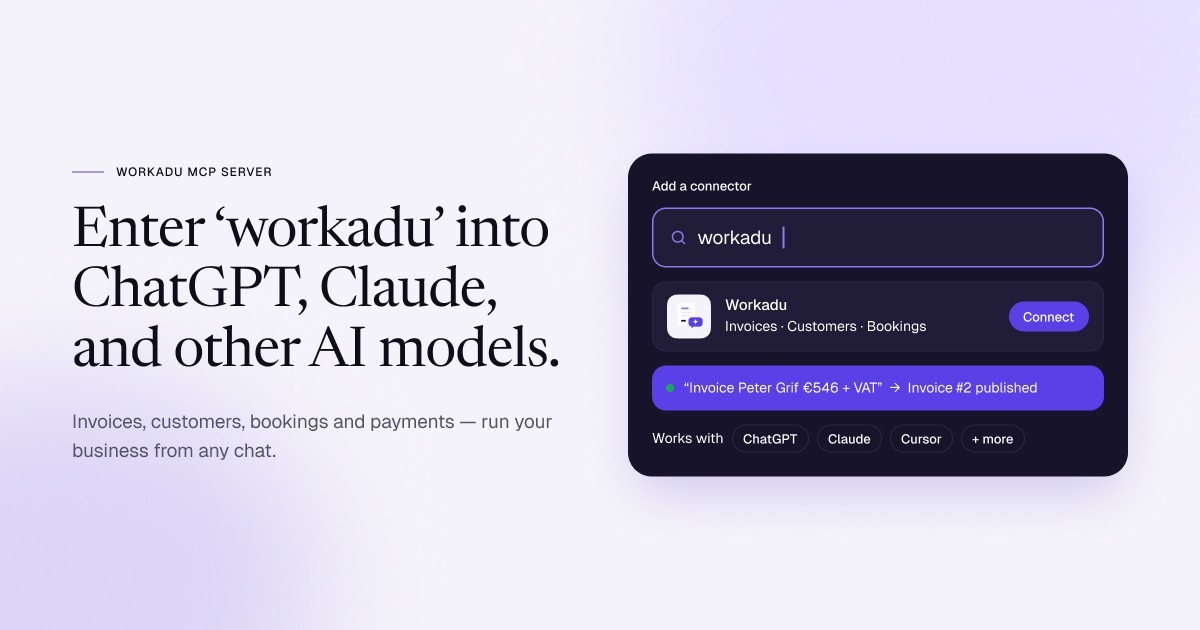
Workadu now works inside Claude and ChatGPT. Add Workadu once as a connector, and you can manage customers, invoices, bookings and payments by simply asking — no coding needed.
No more switching tabs to issue an invoice or check who hasn't paid. You describe what you need in plain words — “Invoice Peter Grif for design and web work, €546 plus VAT, paid by card” — and the AI does the work in your Workadu account.
Setup takes a couple of minutes. You only need one thing: the Workadu connector address, https://mcp.workadu.com/mcp.
What is a connector?
A connector is a secure link between your AI assistant and another app. Once Workadu is connected, Claude or ChatGPT can look up a customer, draft an invoice or record a payment in your account, the same way you would in the Workadu dashboard.
Behind the scenes it uses the Workadu MCP server. MCP stands for Model Context Protocol, an open standard that AI apps use to connect to business tools. You don't need to know anything about it to use it.
How to add Workadu to Claude
- Open Claude on the web or in the desktop app and go to Customize → Connectors.
- Click + Add, then Add custom connector.
- Enter Workadu as the name and paste the address https://mcp.workadu.com/mcp. Click Continue.
- Leave the sign-in settings as they are and click Add.
- Click Connect next to Workadu and sign in with your Workadu account.
That's it. Start a new chat and ask, for example, “Show me my latest invoices in Workadu.” The first time Claude uses Workadu, it asks for your permission.
On a Claude Team or Enterprise plan? Only an Owner can add a custom connector for the organisation. Once they've added Workadu, you'll find it under Customize → Connectors with a “Custom” label — just click Connect.
How to add Workadu to ChatGPT
In ChatGPT, connectors are added as plugins.
- Open ChatGPT and go to Plugins.
- Click + Add, then Add custom MCP server.
- Enter Workadu as the name.
- Under connection, paste the address https://mcp.workadu.com/mcp.
- Click Create as plugin.
Workadu is now ready to use in any chat. There are two ways to call it:
- Type @Workadu in your message, for example “@Workadu show me my latest invoices”.
- Click the + sign in the chat box and scroll to find Workadu.
What you can do with Workadu in your AI assistant
The connector covers the core of your Workadu account. Here's what each area does, with prompts you can copy.
Because the AI can combine these, it can also answer bigger questions — like matching invoices against payments to show who still owes you money.
Example: an invoice in four messages
Here's a real conversation with Claude, connected to a Workadu account. It took four short messages to go from nothing to a published invoice.
- The request. “Create an invoice for Peter Grif, paid by card, with VAT. €546 for accounting, design and web services.”
- The questions. Peter wasn't a customer yet, so Claude added him. It then asked how to split the €546 and whether VAT was included or added on top.
- The details. “Web 200, design 180, accounting 166, VAT on top.” Claude created a draft invoice for services, set to credit card.
- The go-ahead. “Publish it.” The draft became Invoice for Services #2.
The finished invoice:
Peter pays €677.04. The whole thing took under three minutes, without opening the Workadu dashboard once.
You stay in control
The AI does the typing; you make the decisions. Invoices are created as drafts first, so you can check every line before anything becomes official.
- Drafts before publishing. A draft can be edited freely. It only gets an invoice number once you say “publish”.
- Nothing sent without you. Invoices and orders aren't emailed to customers unless you ask.
- myDATA on your terms. Submitting an invoice to AADE myDATA is a separate step you choose to take.
- Your account, your access. The AI only sees the Workadu account you sign in with, and you can disconnect it anytime from your AI app's connector settings.
Frequently asked questions
Why can't I just search for Workadu in the connectors list?
Workadu isn't listed in the Claude or ChatGPT directories yet, so you add it yourself as a custom connector using the address https://mcp.workadu.com/. It works the same way once it's added.
Do I need to know how to code?
No. You only paste one address into your AI app's connector settings and sign in. After that, you just chat in plain language.
Which Claude and ChatGPT plans can use it?
In Claude, custom connectors work on Free, Pro, Max, Team and Enterprise plans; the Free plan allows one custom connector. In ChatGPT, you add Workadu as a custom MCP plugin from the Plugins page; on a company workspace, your admin may need to allow custom plugins first.
Can the AI publish invoices or email customers on its own?
No. Invoices start as drafts, and publishing, emailing or submitting to myDATA happen only when you ask for them.
Is my business data safe?
Your data stays in Workadu. The AI reaches it only through the Workadu connector, using the account you sign in with, and you can disconnect at any time.
Does it work in Greek?
Yes. You can write your requests in Greek or English, and the AI will understand either.
Try it today
Open Claude or ChatGPT, add Workadu as a connector with https://mcp.workadu.com/, and ask for your first invoice. New to Workadu? Start a free account, then connect it in a couple of minutes.
Related posts
saphire-exim
Will a myDATA Integration Slow Down My WooCommerce Checkout?
saphire-exim
Do I Need myDATA If I Already Use Stripe Invoicing or Stripe Tax?
saphire-exim
Is Shopify Already myDATA Compliant? What Greek Sellers Need to Know
saphire-exim
WooCommerce to myDATA Integration: Automatic Invoicing Without Plugins
saphire-exim
Stripe to myDATA Integration: Turn Payments into Compliant Invoices
saphire-exim
Shopify to myDATA Integration: Automatic Invoicing for Greek E-Shops
saphire-exim
Novus Conceptus
 saphire-exim
Impact
 saphire-exim
Eventbrite webhook
 saphire-exim
EFT POS
 saphire-exim
Woocommerce webhook
 saphire-exim
Viva Webhook